
Using templates smartly — get more with fewer AI credits
How to build a complete, professional website using ready-made templates without spending any AI credits — then use AI only where it matters most.
In this guide
Templates cost zero AI credits
Every section template — whether it is a pre-built layout from EasyWebie or one added by the admin team — can be added to your page without using any AI credits.
Templates are ready-made, professionally designed sections. You pick one, it appears on your page instantly, and you edit the text, colors, and links directly in the content editor.
This means a free plan user with 10 lifetime AI builds can still build a complete, polished website — by building it smartly with templates and reserving AI for the things only AI can do.
What templates EasyWebie provides
EasyWebie provides two layers of ready-made designs:
Built-in section variants — every section type (hero, services, about, testimonials, etc.) has multiple visual design variants. These are built into the platform and available on all plans.
Admin-added templates — the EasyWebie team continuously adds new section templates targeting specific business types and use cases. A restaurant gets different hero designs than a law firm. A freelance portfolio gets different layouts than a retail shop.
Both types are free to use, unlimited, and cost zero AI builds.
How to browse and apply a template
To add a new section using a template:
To change the design of an existing section:
To start with a full-page template:
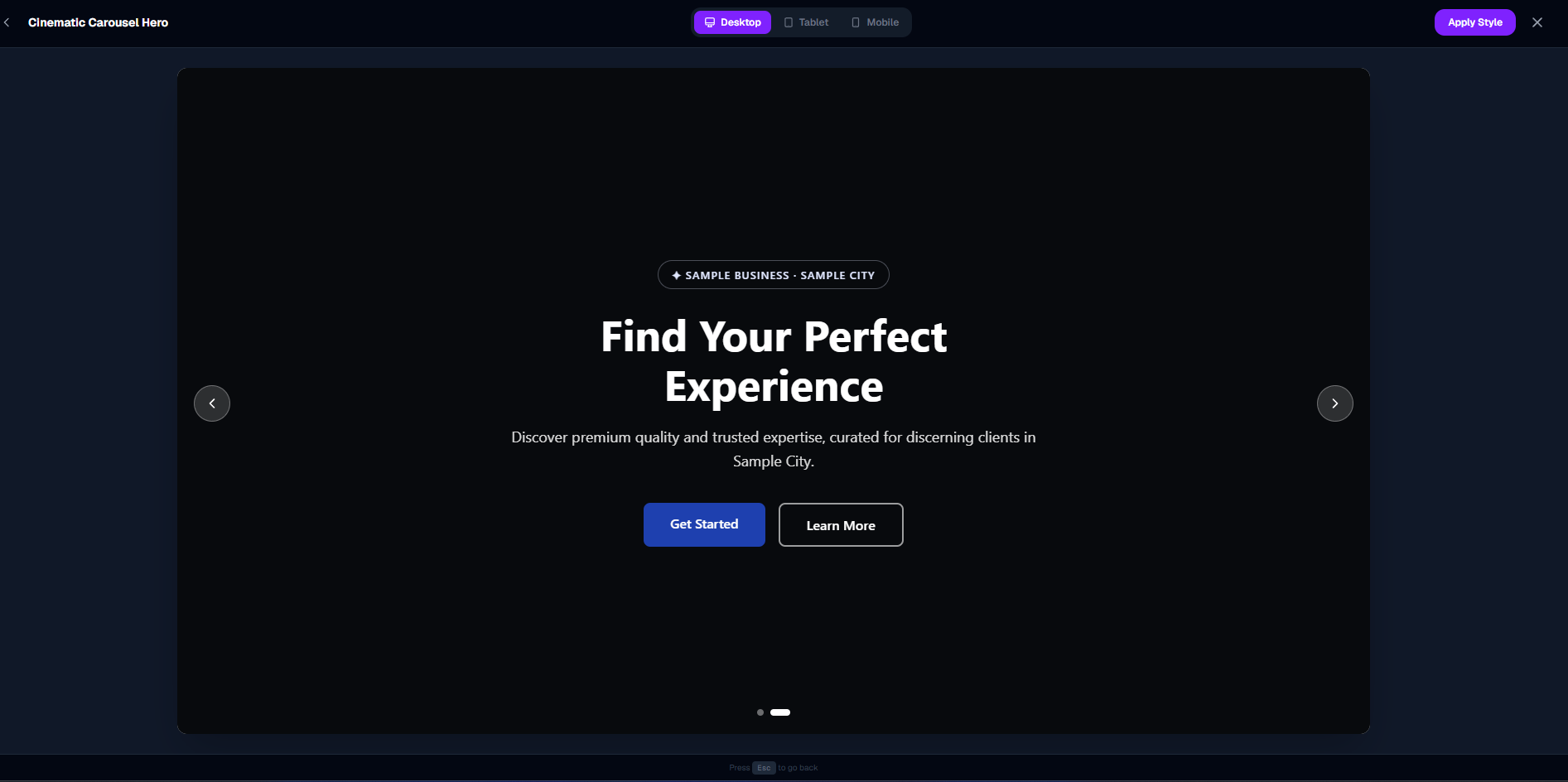
Every template field is fully editable
When you apply a template, the section comes pre-filled with placeholder content (generic text, example prices, sample service names). This is intentional — it gives you a working preview of the layout immediately.
Everything you see is editable:
The content editor on the left shows every editable field in one place — no HTML, no code, no technical knowledge needed.
The smart strategy: templates first, AI second
The most efficient way to build your website — especially on a free or basic plan:
Step 1 — Build the structure with templates (0 credits)
Add all your sections using the variant picker. Get your hero, about, services, testimonials, and contact sections placed and looking good. The layout is done.
Step 2 — Edit all the text manually (0 credits)
Replace every placeholder with your real business content. Your actual service names, prices, business description, team names, real customer reviews. The content editor handles all of this without touching AI.
Step 3 — Use AI on the sections that matter most (uses credits)
Now pick 1–3 sections where professional AI writing would make the biggest difference — usually the hero headline, the about section, and the services descriptions. Use a Regenerate prompt like *"Rewrite this using a confident, professional tone for a dental clinic in Chennai"*. Save AI for where it genuinely elevates the result.
Result: a complete, professional, fully customised website — using 2–3 AI builds instead of 10–15.
Mixing templates and AI freely
There is no restriction on combining templates and AI. You can:
The builder treats template sections and AI-generated sections identically after they are on the page. You can always regenerate, redesign, or change style on any section regardless of how it was originally created.
Saving your own best sections as templates
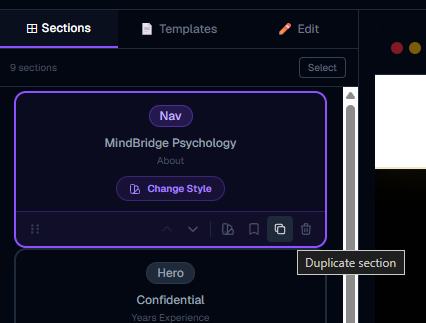
When you design a section that works really well — a services layout styled perfectly for your business, or a hero you love — you can save it as a personal template:
This template is now yours permanently. Apply it to any website in your account with one click — no AI credits, no rebuilding from scratch. Your best designs become reusable building blocks.
This is especially powerful for people who manage multiple websites (clients, side projects, different branches of a business) — build once, reuse everywhere.
What to use AI for (and what to skip)
Use AI for:
Skip AI for:
This approach gives you a website that is both professional and genuine — AI handles the hard writing, you handle the facts.
More in Builder
Builder layout and the top bar
Understand the full builder layout — the three panels, every top-bar button, the save system, and how to navigate pages.
Managing sections — add, reorder, duplicate, delete
Everything about sections: what they are, how to add them in the right position, reorder by dragging, duplicate, delete, and change their visual style.
Editing content — the Edit tab
How to edit text, buttons, links, colors, images, icons, and every other field in the content editor.
The AI Build & Edit drawer
How the AI chat works — generating new sections, redesigning existing ones, choosing models, using reference images, and understanding AI credits.
Media library, logo, fonts, and hero images
How to upload images and logos to the media library, set your site logo, choose fonts, and set a hero background image or video.
Power features — select mode, batch redesign, templates, shortcuts
Advanced builder techniques: select multiple sections for batch AI redesign, save custom section templates, use keyboard shortcuts, and apply full-site templates.
Managing pages in your website
How to add new pages, switch between pages, navigate internal links, and delete pages you no longer need.
Empty Section — build any custom layout with AI or your own code
How to add a blank empty section to your page and use the AI drawer or Code Editor to turn it into any layout you can imagine — no templates, no limits.
Section Creator — build and save custom HTML/CSS sections
How to write your own HTML and CSS in the Section Creator, add editable fields with data attributes, run the AI security check, and reuse your sections across all your websites.
Section Creator — coding rules & what JavaScript is allowed
Understand exactly what HTML, CSS, and JavaScript you can use in the Section Creator — including how to write interactive components like menus, accordions, and animations correctly.
Creating new pages with AI — the complete guide
How to use the AI assistant to create full pages with sections and automatic nav wiring — including model choice, credit costs, and what to expect.
AI Assistant tips and tricks — get better results faster
Practical techniques for getting the most from the AI assistant — quick prompts, the right mode for the right job, how to save credits, and what the AI can actually do.
Save as My Template — reuse sections across all pages
How to save any section as a personal template and reuse it on any page or any website — the fastest way to keep your site consistent.