
Power features — select mode, batch redesign, templates, shortcuts
Advanced builder techniques: select multiple sections for batch AI redesign, save custom section templates, use keyboard shortcuts, and apply full-site templates.
In this guide
Select mode — choose multiple sections
The Select button at the top of the section list activates Select Mode. In this mode, each section row shows a checkbox on the left instead of the normal select-to-edit behavior.
Tap sections to check/uncheck them. The toolbar shows how many are currently selected. Use All to check every section at once. Use Cancel to exit select mode without taking any action.
Batch redesign — redesign multiple sections at once
With 2 or more sections checked in Select Mode, a Redesign N sections button appears at the bottom of the left panel.
Clicking it sends all selected sections to AI for simultaneous redesign. This uses 1 Sonnet credit total regardless of how many sections you selected — making it very efficient for a complete visual refresh.
The AI redesigns each section in parallel and returns the updated versions. Your section content (headlines, text, links) is preserved — only the visual design changes.
Best use: Select your hero, about, and services sections and click "Redesign 3 sections" to get a completely new look for your homepage in one action.
Saving a section as your own template
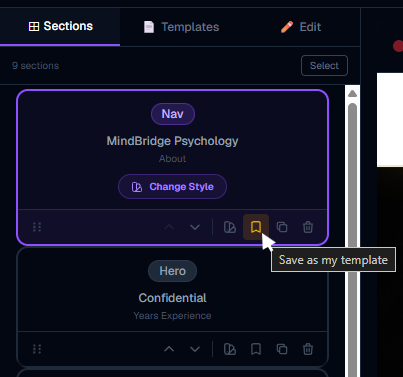
Any section can be saved as a personal template and reused across any site you own:
Your saved templates appear at the top of the variant picker whenever you click Change Style on a matching section type, or add a new section of that type. They are marked with a star and can be deleted from the variant picker.
Applying a full-site template
The Templates tab in the left panel shows complete pre-built website layouts. Click any template to preview it, then Apply to replace your entire page with that template's sections.
If your page already has sections, you will see a confirmation prompt warning that existing content will be replaced. After applying, your business name and details are automatically injected into the new sections.
Use this when: you want to start fresh with a completely new look, or you just created a new page and want a quick starting point.
Changing a section's visual style (variant picker)
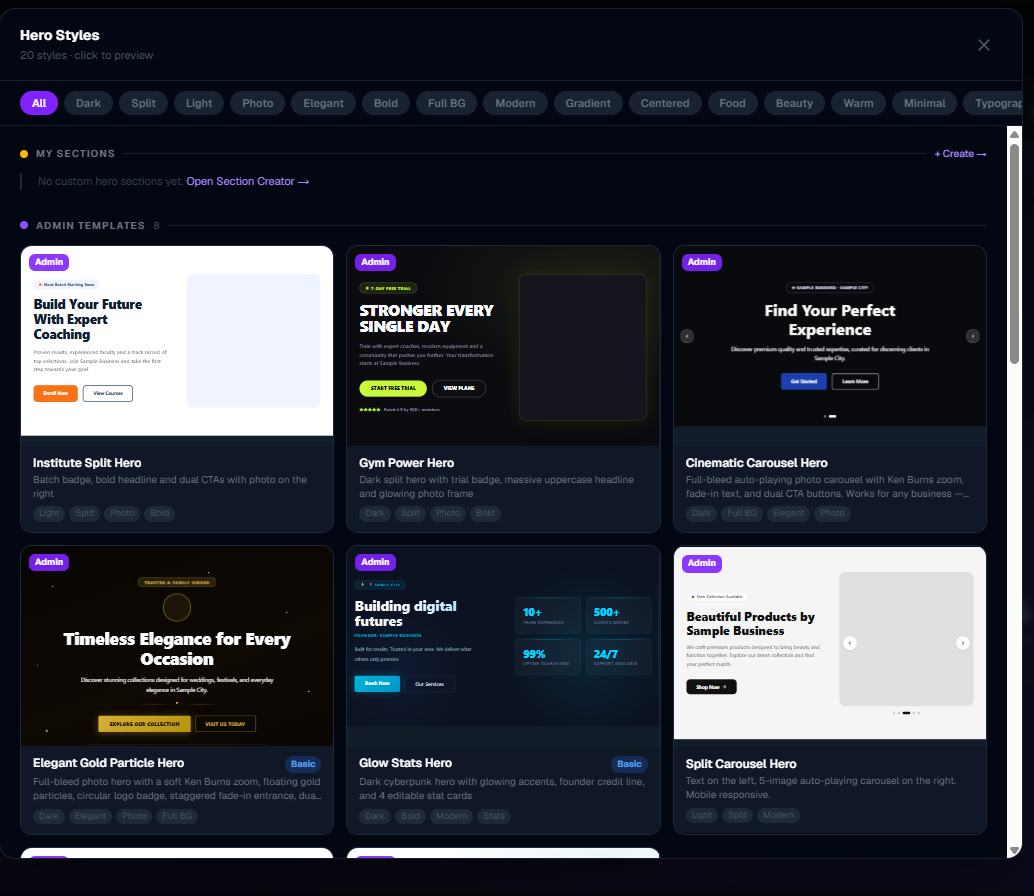
Every section type has multiple design variants — different visual layouts for the same type of content. To switch variants:
This is different from AI Redesign — variant switching applies a pre-built layout instantly with no AI credits used.
Keyboard shortcuts
Ctrl+Z (or Cmd+Z on Mac) — Undo the last action. The builder keeps up to 20 undo steps in memory for the current session. Undo history is cleared when you switch pages or reload.
Ctrl+Y (or Ctrl+Shift+Z / Cmd+Shift+Z) — Redo a previously undone action. Up to 20 redo steps.
Both shortcuts are automatically disabled when your cursor is inside a text input or textarea — so typing normally in a field never accidentally undoes your work.
Important: Undo/redo is session-only and in-memory. If you reload the page, history is cleared. The underlying draft is already saved to Firestore, so reloading shows your latest draft — but you cannot undo past the page load.
The builder tour
Click the small ? circle in the top bar to launch the guided Builder Tour. This is a series of tooltip overlays that highlight each part of the builder one at a time — left panel, preview, AI button, top bar — with a short explanation at each step.
If you are new to the builder, run the tour once. You can re-run it any time from the ? button.
More in Builder
Builder layout and the top bar
Understand the full builder layout — the three panels, every top-bar button, the save system, and how to navigate pages.
Managing sections — add, reorder, duplicate, delete
Everything about sections: what they are, how to add them in the right position, reorder by dragging, duplicate, delete, and change their visual style.
Editing content — the Edit tab
How to edit text, buttons, links, colors, images, icons, and every other field in the content editor.
The AI Build & Edit drawer
How the AI chat works — generating new sections, redesigning existing ones, choosing models, using reference images, and understanding AI credits.
Media library, logo, fonts, and hero images
How to upload images and logos to the media library, set your site logo, choose fonts, and set a hero background image or video.
Managing pages in your website
How to add new pages, switch between pages, navigate internal links, and delete pages you no longer need.
Using templates smartly — get more with fewer AI credits
How to build a complete, professional website using ready-made templates without spending any AI credits — then use AI only where it matters most.
Empty Section — build any custom layout with AI or your own code
How to add a blank empty section to your page and use the AI drawer or Code Editor to turn it into any layout you can imagine — no templates, no limits.
Section Creator — build and save custom HTML/CSS sections
How to write your own HTML and CSS in the Section Creator, add editable fields with data attributes, run the AI security check, and reuse your sections across all your websites.
Section Creator — coding rules & what JavaScript is allowed
Understand exactly what HTML, CSS, and JavaScript you can use in the Section Creator — including how to write interactive components like menus, accordions, and animations correctly.
Creating new pages with AI — the complete guide
How to use the AI assistant to create full pages with sections and automatic nav wiring — including model choice, credit costs, and what to expect.
AI Assistant tips and tricks — get better results faster
Practical techniques for getting the most from the AI assistant — quick prompts, the right mode for the right job, how to save credits, and what the AI can actually do.
Save as My Template — reuse sections across all pages
How to save any section as a personal template and reuse it on any page or any website — the fastest way to keep your site consistent.