
Publishing your website
Understand what happens when you click Publish — the pre-publish steps, your free subdomain, and how to go live.
In this guide
What happens when you publish
Publishing sends your website to Cloudflare's global edge network — the same infrastructure used by millions of professional websites worldwide. Your site goes live at a real URL, reachable from anywhere in the world, usually within 30 seconds.
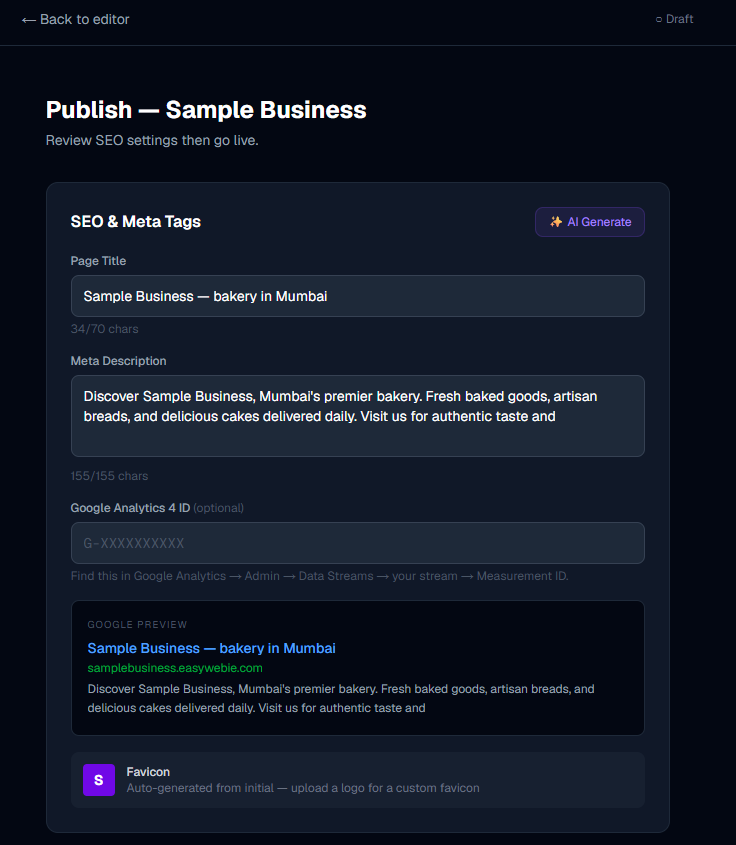
Step 1 — Verify your email
Before your first publish, EasyWebie needs to verify your email address. Click Verify email and check your inbox for a confirmation link. Click the link in the email, then come back and continue.
This is a one-time step — you only need to do it once per account.
Step 2 — AI content scan
EasyWebie runs a quick AI scan of your website content before publishing. This checks that the content follows the platform guidelines (no spam, harmful content, or misleading information).
For normal business websites this passes automatically in a few seconds. If it raises a concern, you will see a message explaining what to change.
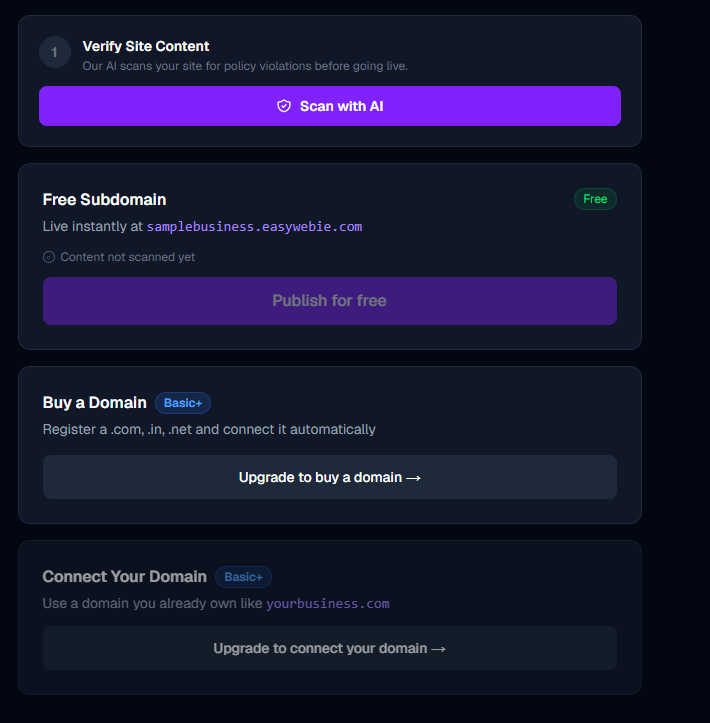
Step 3 — Terms of Service
On your very first publish you will need to accept the EasyWebie Terms of Service. Read through and click Accept. This is also a one-time step.
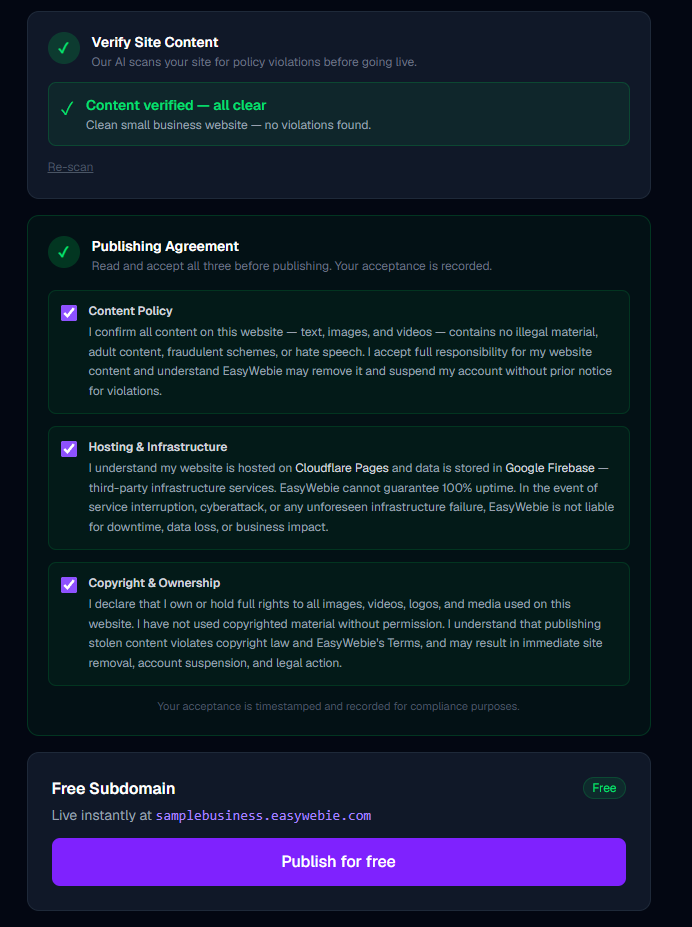
Your free subdomain
Every EasyWebie website gets a free subdomain at yourname.easywebie.com the moment it is published. No setup needed — it is automatic.
The subdomain name is generated when you first create the site. You can see it on your website card in the dashboard after publishing.
Your site is live at this address for free, forever — even on the free plan.
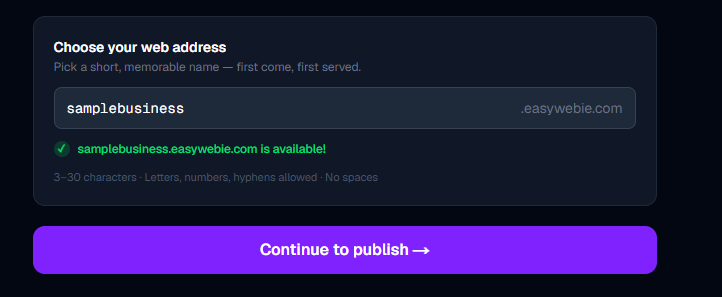
Republishing after edits
After you have edited your site in the builder, the dashboard shows an "Unpublished changes" warning on the website card. Click Publish again to push those changes live.
Republishing is instant after the first publish — no email or ToS steps needed again. Just click Publish and your changes are live in seconds.
Connecting a custom domain
Want yourname.com instead of yourname.easywebie.com? You can buy a domain directly through EasyWebie or connect one you already own. See the Custom Domain guide for the full walkthrough.
More in Publishing
Publishing on every plan — free, Basic, Starter, and Pro
What each plan can publish, how many sites and pages you get, where your site lives, and the lowest-cost path to a custom domain.
Your free easywebie.com address — publish without buying a domain
How your free subdomain works, what it looks like, who it is for, and when upgrading to a custom domain makes sense.
Publish history and rollback — restore a previous version
How EasyWebie saves your last 3 published versions and how to restore any of them in one click if something goes wrong after a publish.